How to Link Any NFC Card to Your Digital Card Free (2026)

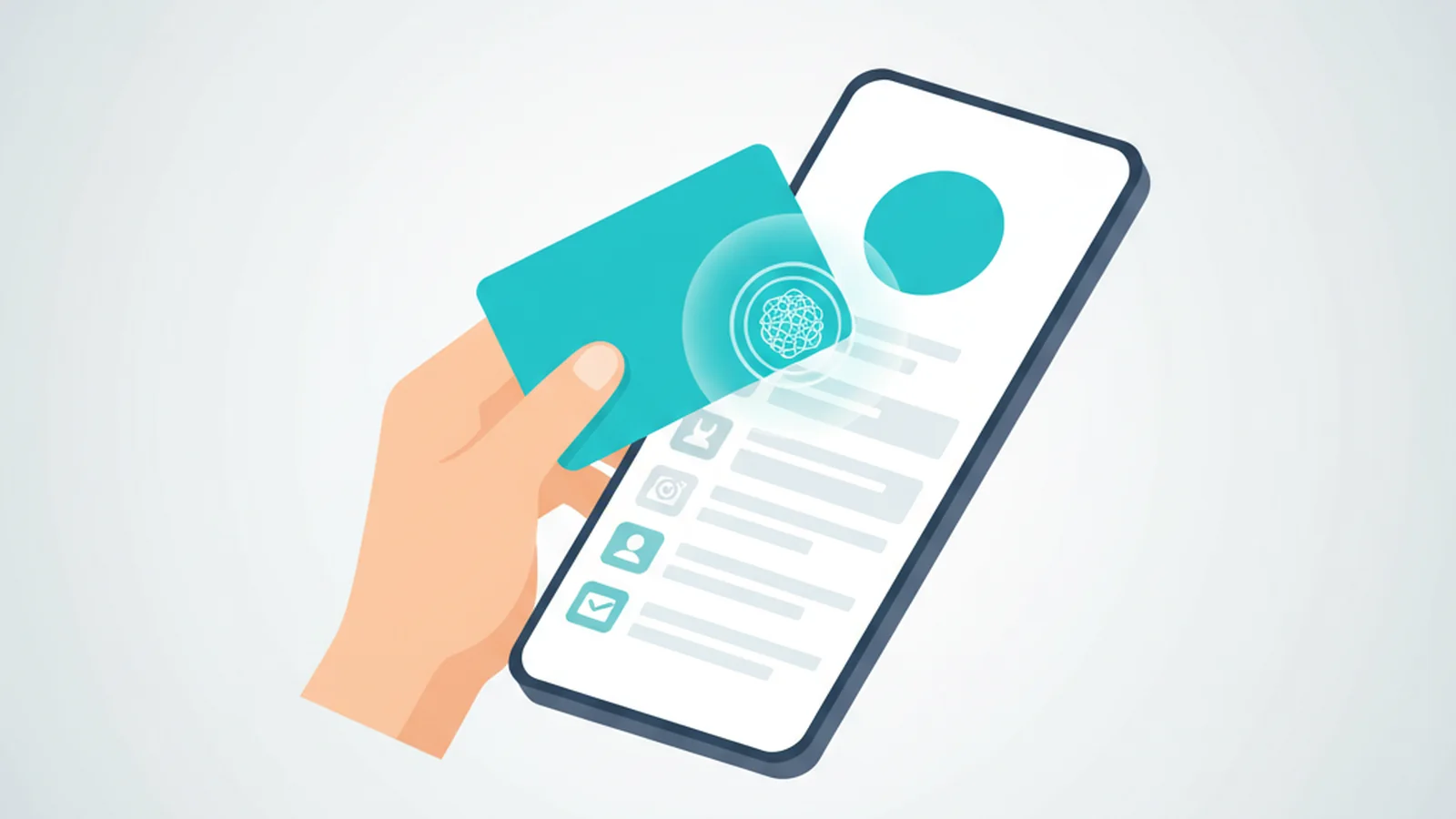
You can easily link any generic NFC card, sticker, or tag to your digital business card profile for free using a platform like ScaanMe. The process involves writing your unique profile URL onto the NFC chip with a free mobile app. This guide provides clear, step-by-step instructions to program your own NFC card and start sharing your contact details with a simple tap on any modern smartphone.
In a world of digital networking, having a quick, impressive way to share your information is crucial. While many companies sell expensive, branded NFC cards, there's a smarter, more affordable secret: you don't need their hardware. You can buy a cheap, generic NFC card and link it to a powerful digital profile yourself.
What is an NFC Card and How Does It Work?
NFC stands for "Near Field Communication". It's a short-range wireless technology that allows two devices to communicate when they are close to each other (typically within 4 cm or 1.5 inches). It is the same secure technology that powers contactless payments like Apple Pay and Google Pay.
An NFC business card contains a tiny, passive microchip and an antenna. It has no battery. When you tap the card on a compatible smartphone, the phone's own NFC reader sends out a small radio signal that powers the chip just long enough for it to transmit the data it holds.
In this case, the data is simply a URL pointing to your digital business card profile. The card itself is just a key; the "magic" happens on the platform hosting your profile, like ScaanMe. This means any standard NFC card can work. For more technical details, you can visit the official NFC Forum website.
Why Should You Use Your Own NFC Card?
Many digital business card providers push you to buy their branded NFC cards. While convenient, this model has downsides. Here’s why bringing your own NFC card is a better strategy:
- Massive Cost Savings: Generic NFC cards (look for NTAG215 or NTAG216 chips) are incredibly cheap: bought in bulk on Amazon or AliExpress, blank NTAG215 cards typically cost under $1 to $2 apiece, a fraction of the price of a single branded card. The card is just a $1 key; the profile behind it is the product.
- Total Freedom and Flexibility: When you own the card, you control it. If you ever decide to switch digital business card platforms, you can simply re-program your existing card with a new link. You are not locked into a single vendor's ecosystem.
- Customization: You can buy NFC cards in various forms: plastic cards, small stickers, wooden cards, or even key fobs. You can choose what best fits your brand and style, rather than being limited to a vendor's design.
ScaanMe was built on this principle of openness. We believe you shouldn't have to buy proprietary hardware. Our platform is designed to link with *any* NFC card you own, and we give you this feature for free, even on our Free Lite plan.
How to Program and Link Your NFC Card in 6 Steps
Ready to get started? Here’s how you can link your own NFC card to your ScaanMe profile in just a few minutes.
Step 1: Create Your ScaanMe Profile and Get Your Link
First, you need a digital business card.
* Sign up for a [ScaanMe Lite plan](/register). It's completely free and gives you a powerful, customizable vCard profile.
* Design your card: add your photo, contact details, social media links, and more.
* Once your profile is ready, go to the "Share" section in your ScaanMe dashboard and copy your unique profile URL. It will look something like scaan.me/yourname.
Step 2: Get a Generic NFC Card
You can buy a compatible NFC card from almost anywhere. Search for "NFC NTAG215 card" or "NFC NTAG216 tag" on Amazon, AliExpress, or a local electronics supplier. NTAG215 and NTAG216 chips offer a good balance of memory and compatibility for this purpose. If you are sourcing locally in the Gulf or the Levant, our market guides for Kuwait and NFC business cards in Syria cover where readers in each country actually buy their tags.
Step 3: Download a Free NFC Writing App
You'll need an app to write your ScaanMe URL to the NFC chip. We recommend NFC Tools, which is free and available for both iPhone and Android.
Step 4: Write Your ScaanMe URL to the Card
This is the core step. It's much simpler than it sounds.
- Open the NFC Tools app.
- Navigate to the Write tab.
- Tap Add a record.
- Choose the URL / URI option.
- Paste your ScaanMe profile URL (e.g., https://scaan.me/yourname) into the field and tap OK.
- Tap the large Write button. The app will prompt you to approach an NFC tag.
- Hold your NFC card against the back of your phone. The exact location of the NFC reader varies:
* iPhone: Near the top edge, by the camera array.
* Android: Usually in the center of the back.
- Keep the card still for a moment until you see a confirmation message. That's it! Your card is now programmed.
Step 5: Lock Your NFC Card (Optional but Recommended)
To prevent anyone from accidentally or maliciously changing the link on your card, you can lock it permanently.
* In the NFC Tools app, go to the Other tab and find the Lock tag option.
* Be warned: This action is irreversible. You will not be able to change the URL on the card ever again. Only do this if you are certain you want the link to be permanent.
Step 6: Test Your Card
Tap your newly programmed card on a friend's phone (or your own, with the NFC Tools app closed). It should instantly open your ScaanMe digital business card in their web browser. It works with any modern smartphone (iPhone XS/XR and newer; most Androids from the last 5-6 years) without needing any app installed.
What if My NFC Card Isn't Working? (Troubleshooting)
If the tap doesn't work, don't worry. It's usually a simple fix.
* Phone Case: A very thick phone case, especially one with metal or a magnet, can block the NFC signal. Try removing the case and tapping again.
* NFC Location: You might be tapping the wrong spot. Try sliding the card slowly over the back of the phone to find the "sweet spot".
* NFC is Disabled (Android): On some Android phones, you may need to enable NFC in your settings. Go to Settings > Connections and make sure "NFC and contactless payments" is turned on. (On iPhones, NFC is always on for reading tags).
* Tapping Too Slowly: A quick, decisive tap often works better than holding the card against the phone for a long time.
The ScaanMe Method vs. Traditional NFC Card Vendors
Here is a clear comparison to help you decide.
| Feature | The ScaanMe "Bring Your Own NFC" Method | Traditional Vendor-Locked NFC Cards |
|---|---|---|
| Hardware Cost | Extremely low. Buy generic cards for a minimal price. | High. Cards are sold at a significant markup. |
| Platform Cost | Free to start. ScaanMe's Lite plan is $0/month. | Often requires a paid subscription to function. Some have limited free tiers. |
| Flexibility | High. Reprogram your card with any link, anytime (if not locked). | Low. Card is often permanently tied to one platform and profile. |
| Replacement | Cheap and easy. Just program another generic card. | Expensive. You must buy another branded card from the same vendor. |
| Setup Process | Simple DIY process using a free app (takes 2 minutes). | Usually pre-programmed, but locks you into their system. |
Frequently Asked Questions
1. Do I need to buy a special card from ScaanMe?
No. ScaanMe does not sell any hardware. Our platform is designed to work with any standard NFC card you buy from any retailer, which you can link for free.
2. Can I link an NFC card with the free ScaanMe Lite plan?
Absolutely. The ability to link your own NFC card is a core feature available on all ScaanMe plans, including the Free Lite plan which costs $0.
3. What is the best type of NFC chip to buy?
For storing a URL, NTAG215 or NTAG216 chips are perfect. They are widely available, compatible with all modern phones, and have enough memory.
4. Can I change the link on my NFC card later?
Yes, as long as you did not permanently lock the tag during the writing process (Step 5). To change it, simply follow the same steps in the NFC Tools app to write a new URL over the old one.
5. Will this work on both iPhone and Android?
Yes. All iPhones from the XR/XS (2018) onwards and the vast majority of modern Android phones can read NFC tags natively without requiring the user to install an app.
By embracing the "bring your own hardware" model, you gain control, save money, and enjoy the full power of a premium digital business card platform. ScaanMe offers this flexibility alongside powerful features like Apple & Google Wallet integration, detailed analytics, and even a built-in WhatsApp Store to showcase your products and services.
Ready to create your free digital business card and link it to any NFC device? [Get started with ScaanMe's free Lite plan today](/register), and compare the paid tiers on the pricing page whenever you outgrow it.