Add Your Business Card to Apple and Google Wallet

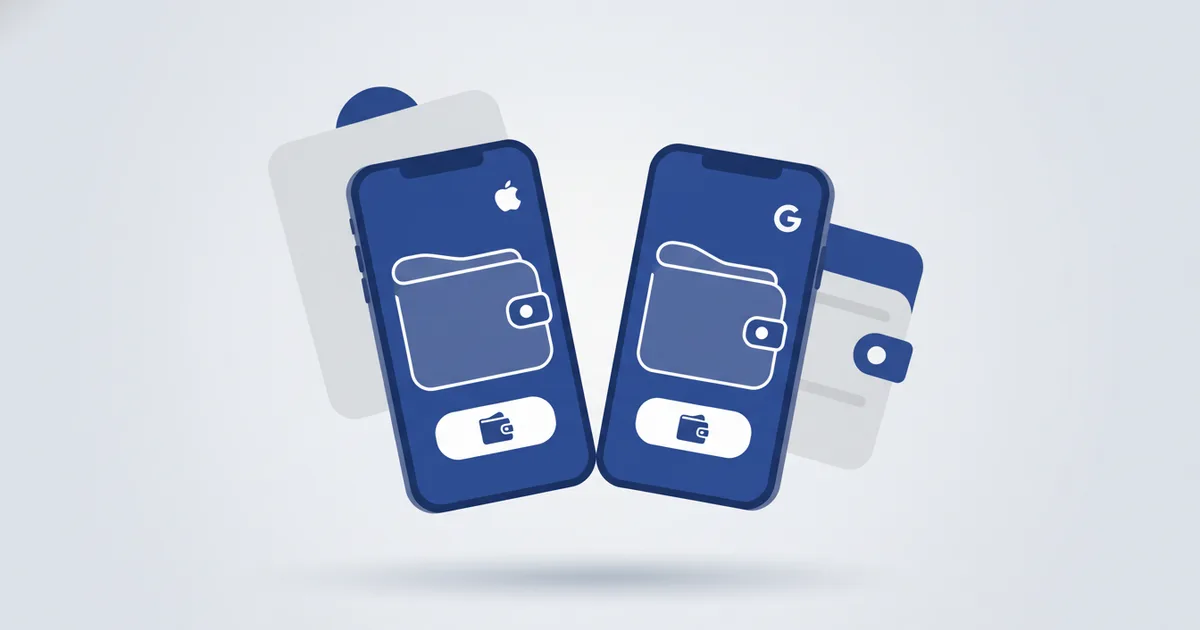
Putting your business card in Apple Wallet takes about two minutes, and it changes the speed of every introduction that follows. A digital card wallet pass is a version of your business card that lives inside the Wallet app on your phone, one swipe from the lock screen, next to your boarding passes and payment cards. This tutorial covers the exact setup for both Apple Wallet and Google Wallet, how to pull the pass up from a locked phone, and how the pass works alongside NFC and QR sharing. The wallet, meanwhile, is where your contacts already live: Juniper Research projects that digital wallet users will exceed three quarters of the global population by 2030. Scaanme generates the pass from your live profile on Wallet-enabled plans.
What You Need Before You Start
- A live digital business card. A free Scaanme digital business card works; the Lite plan requires no credit card.
- An iPhone (Wallet is built into iOS) or an Android phone with the Google Wallet app installed.
- Two minutes and your own phone. That is the full list.
Step 1: Make the Card Worth Saving
The pass is a shortcut to your live profile, so fix the profile first:
- Check your name, title, and phone number, including the country code (for example +962 or +966).
- Remove links you do not maintain. A dead link costs more trust than no link.
- Open your card in a private browser tab and read it the way a stranger would.
Step 2: Add the Card to Apple Wallet (iPhone)
- Open your Scaanme card in Safari on your iPhone.
- Tap the Add to Apple Wallet option on your card.
- Review the pass preview: your name, your title, and the QR code.
- Tap Add in the top corner.
- Open the Wallet app and confirm the pass is there.
If you cannot find the Wallet app on your iPhone, Apple explains how to restore and use it in its official Wallet guide.
Step 3: Add the Card to Google Wallet (Android)
- Open your Scaanme card in Chrome or any browser on your Android phone.
- Tap the Add to Google Wallet option.
- Sign in to your Google account if prompted.
- Tap Save.
- Open the Google Wallet app and confirm the pass appears with your cards.
Step 4: Rehearse the Lock Screen Draw
The point of a wallet pass is that it appears before your phone is even unlocked. Practice this twice so it becomes automatic:
- iPhone: double-click the side button (or the Home button on Touch ID models), authenticate, and swipe to your card pass.
- Android: open Google Wallet from the app icon, or add a Wallet shortcut to your home screen or quick settings so it sits one gesture away.
The three-second rule: if you can show your QR code within three seconds of deciding to share, the setup is done.
Time yourself against that rule twice, and the draw becomes muscle memory.
When a Wallet Pass Beats Opening an App
Your card is always reachable through a browser tab or your dashboard. The pass simply deletes every step between deciding to share and showing a scannable code: unlock, hunt for the app or tab, wait for the page. Unplanned introductions live or die in those seconds.
| Situation | Why the pass wins |
|---|---|
| Reception desks and security gates | Your details are ready while the phone is still locked |
| Elevator and hallway moments | No hunting for a browser tab or an app |
| Crowded venues with weak signal | The pass opens from Wallet instantly, and the scan happens on the other person's phone |
| Handing your phone across a counter | A pass shows exactly one thing: your card |
A quick example: a wedding photographer in Amman printed 500 paper cards for about 35 JOD every season, and they ran out by mid-summer. Her wallet pass now covers venue coordinators, hotel staff, and guests who ask for her details, and the reprint bill is zero, along with the paper waste that used to come with it, which is better for the environment.
How Sharing From the Pass Actually Works
The front of the pass shows a QR code. The other person points their camera at it, and your live profile opens in their browser. No app is needed on either side. They can save your contact details from the profile, and you capture their information when they share theirs back, so the exchange works in both directions.
Because the QR code points to your live card, the details people see are always current. Change your phone number or add a service on your Scaanme card, and every scan from that day forward shows the update. You never rebuild the pass.
Wallet Pass, NFC, and QR: One Profile, Three Doors
The pass does not replace your other sharing methods; it completes them. An NFC card linked to your profile is the strongest move in a seated meeting. A printed QR code works on packaging, menus, and signage. The wallet pass covers the moments in between, when the introduction is unplanned and speed decides whether it happens at all. All three open the same live profile, so there is exactly one place to keep updated.
FAQ
Does a wallet pass business card work without internet? The pass itself does: it is stored inside Apple Wallet or Google Wallet and appears from the lock screen with no connection, which matters in exhibition halls and areas with weak coverage. The person scanning your QR code needs a connection on their side to open your live profile.
Does an Apple Wallet business card work on Android? The pass formats are separate: iPhones use Apple Wallet and Android phones use Google Wallet, and Scaanme generates both from the same card. Sharing works across platforms either way, because the other person just scans the QR code on your pass with any camera.
What is a digital card wallet pass? A digital card wallet pass is a business card saved inside Apple Wallet or Google Wallet, available one swipe from the lock screen. A Scaanme digital business card can be saved to both wallets, and the QR code on the pass opens the owner's live profile when scanned.
Does the other person need an app to scan my wallet pass? No. They point their phone camera at the QR code on your pass, and your profile opens in their web browser.
Is a wallet pass better than an NFC card? Neither replaces the other. The wallet pass is fastest from a locked phone, while an NFC tap feels more deliberate in meetings. Both open the same live profile, so most professionals carry both.
Do I need to update the pass when my details change? No manual rebuild is needed for what people see: the QR code on the pass opens your live card, so anyone who scans it lands on your current details.