Add Your Business Card to Apple & Google Wallet

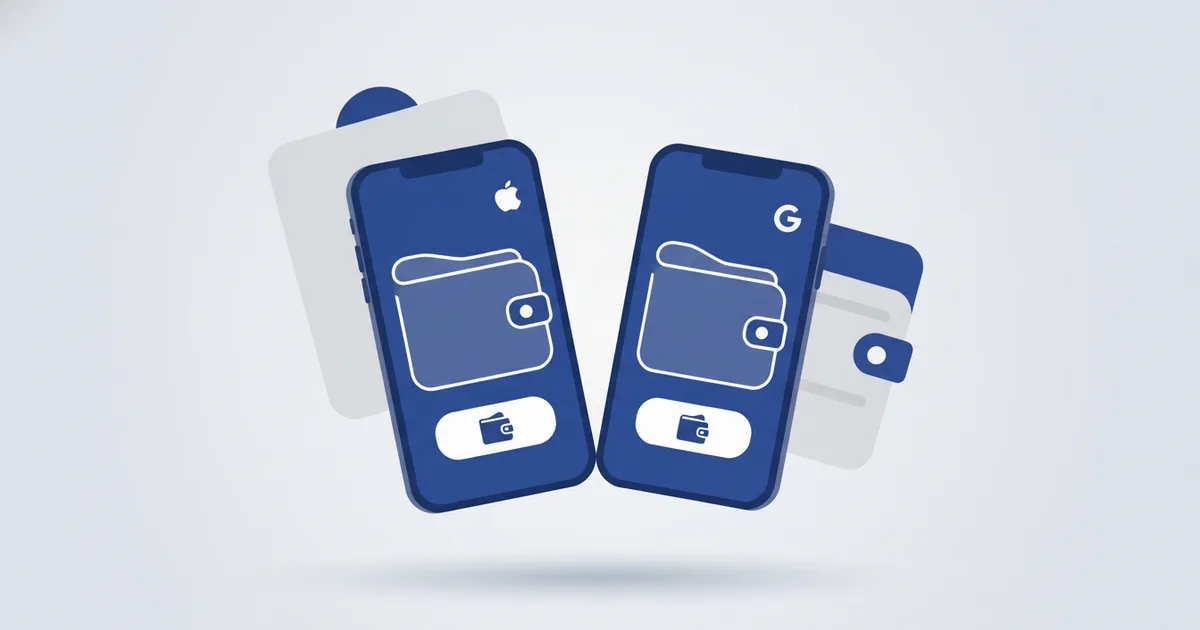
To add your business card to Apple Wallet: open your ScaanMe profile on your iPhone, tap Add to Apple Wallet, review the preview, and tap Add. On Android, tap Add to Google Wallet and Save. From then on your card sits next to your payment cards, opens without internet, and shows a scannable QR code to anyone you meet. Wallet passes are a standard ScaanMe feature, and this guide covers both wallets step by step plus the questions Gulf iPhone users ask most.
The wallet habit is not niche anymore. Juniper Research counted digital wallet users passing 5.2 billion in 2026, and its later forecast has wallet use surpassing three quarters of the world's population by 2030. Your business card living where the boarding passes and bank cards live is exactly where people already look.
Why put your card in the wallet
| Benefit | Details |
|---|---|
| Always accessible | Right next to your payment cards, two clicks away |
| No app needed | Built into every iPhone and Android |
| Works offline | The pass and its QR code are stored on the phone |
| Quick sharing | Show the QR from the wallet, the other person scans |
| Professional | A modern impression in iPhone-heavy Gulf business settings |
What you need before you start
- A live digital business card. A free ScaanMe digital business card works, and the Lite plan needs no credit card.
- An iPhone (Wallet is built into iOS) or an Android phone with the Google Wallet app installed.
- Two minutes and your own phone. That is the full list.
Prepare the card before you save it
The pass is a shortcut to your live profile, so fix the profile first:
- Check your name, title, and phone number, including the country code (for example +962 or +966).
- Remove links you do not maintain. A dead link costs more trust than no link.
- Open your card in a private browser tab and read it the way a stranger would.
How to add to Apple Wallet
- Open your ScaanMe profile on your iPhone
- Tap the Add to Apple Wallet button
- Review the card preview: name, title, QR code
- Tap Add in the top right corner
- Done. Double-click the side button anytime to bring up your wallet, swipe to your card, and present the QR
If you cannot find the Wallet app on your iPhone, Apple explains how to restore and use it in its official Wallet guide.
How to add to Google Wallet
- Open your ScaanMe profile on your Android phone
- Tap Add to Google Wallet
- Sign in to your Google account if prompted
- Tap Save to confirm
- Access the card from the Google Wallet app or straight from the notification shade
Rehearse the lock screen draw
The point of a wallet pass is that it appears before your phone is even unlocked. Practice this twice so it becomes automatic:
- iPhone: double-click the side button (or the Home button on Touch ID models), authenticate, and swipe to your card pass.
- Android: open Google Wallet from the app icon, or add a Wallet shortcut to your home screen or quick settings so it sits one gesture away.
The three-second rule: if you can show your QR code within three seconds of deciding to share, the setup is done.
Time yourself against that rule twice, and the draw becomes muscle memory.
When a wallet pass beats opening an app
Your card is always reachable through a browser tab or your dashboard. The pass simply deletes every step between deciding to share and showing a scannable code: unlock, hunt for the app or tab, wait for the page. Unplanned introductions live or die in those seconds.
| Situation | Why the pass wins |
|---|---|
| Reception desks and security gates | Your details are ready while the phone is still locked |
| Elevator and hallway moments | No hunting for a browser tab or an app |
| Crowded venues with weak signal | The pass opens from Wallet instantly, and the scan happens on the other person's phone |
| Handing your phone across a counter | A pass shows exactly one thing: your card |
A quick example: a wedding photographer in Amman printed 500 paper cards for about 35 JOD every season, and they ran out by mid-summer. Her wallet pass now covers venue coordinators, hotel staff, and guests who ask for her details, and the reprint bill is zero, along with the paper waste that used to come with it, which is better for the environment.
How sharing from the pass actually works
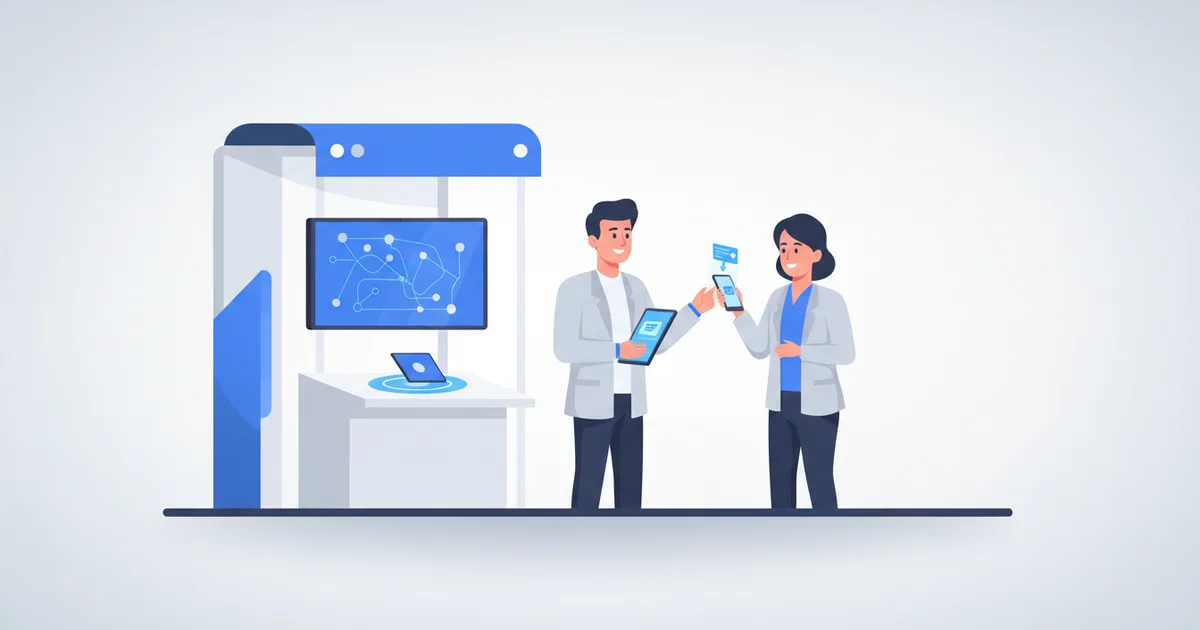
The front of the pass shows a QR code. The other person points their camera at it, and your live profile opens in their browser. No app is needed on either side. They can save your contact details from the profile, and you capture their information when they share theirs back, so the exchange works in both directions.
Because the QR code points to your live card, the details people see are always current. Change your phone number or add a service on your ScaanMe card, and every scan from that day forward shows the update. You never rebuild the pass.
Wallet, NFC, or both?
Use the wallet pass when you forgot your NFC card, for quick informal sharing, or at reception desks where showing a QR is fastest.
Use your NFC card in premium client meetings and at events, where the physical tap leaves a stronger impression; real estate agents live this daily, as the NFC real estate guide shows.
Use a printed QR code on packaging, menus, and signage, where there is no phone to tap and no screen to show.
Use all three. They point to the same profile, so the stats and the content stay unified whichever way someone reached you.
Your paper card stays home more days than your phone ever will; put the card where the phone is.
Automatic updates
When you change your title, number, or company in ScaanMe, the wallet pass updates automatically. Nobody re-adds anything, and no outdated card of yours sits in anyone's wallet. Wallet passes are included with ScaanMe cards: a free plan is available and paid plans start from $7.99/month on the pricing page. New here? Create your card first, then add it to your wallet in under a minute.
Before your next event
- Add the pass to your wallet today, not in the elevator on event day.
- Check that your title and company are current; the pass mirrors your live profile, so a stale profile means a stale pass.
- Practice the gesture once: double-click, swipe, present. It should take two seconds, because the moment at a majlis or a booth rarely gives you more.
- Keep your NFC card in your badge holder as the premium option, with the wallet QR as the always-there backup.
- The morning after, open your dashboard and see how many of those taps and scans turned into views and contact saves.
FAQ
Is an Apple Wallet business card free?
Yes. Adding your ScaanMe card to Apple Wallet or Google Wallet is included with your account, and the free plan supports it. You pay nothing per pass.
Does the wallet card work without internet?
Yes. The pass and its QR code are stored on your phone, so you can present it in a basement parking meeting or mid-flight. The person scanning it needs a connection to open your live card.
Does the wallet card update when I change my number?
Yes, automatically. The pass pulls from your live profile, so edits in the dashboard reach every wallet that saved your card without anyone lifting a finger.
Can Android phones scan an Apple Wallet card?
Yes. The QR code on your Apple Wallet pass is a normal QR: any camera, iPhone or Android, scans it and opens your card in the browser. The pass formats themselves are separate, iPhones use Apple Wallet and Android phones use Google Wallet, and ScaanMe generates both from the same card. The wallets differ only in where the pass is stored, not in who can scan it.
What is a digital card wallet pass?
A digital card wallet pass is a business card saved inside Apple Wallet or Google Wallet, available one swipe from the lock screen. A ScaanMe digital business card can be saved to both wallets, and the QR code on the pass opens the owner's live profile when scanned.
Does the other person need an app to scan my wallet pass?
No. They point their phone camera at the QR code on your pass, and your profile opens in their web browser, where they can save your details straight into their contacts.
Is a wallet pass better than an NFC card?
Neither replaces the other. The wallet pass is fastest from a locked phone, while an NFC tap feels more deliberate in meetings. Both open the same live profile, so most professionals carry both.