Business Card Scanner: Paper Card to CRM Contact

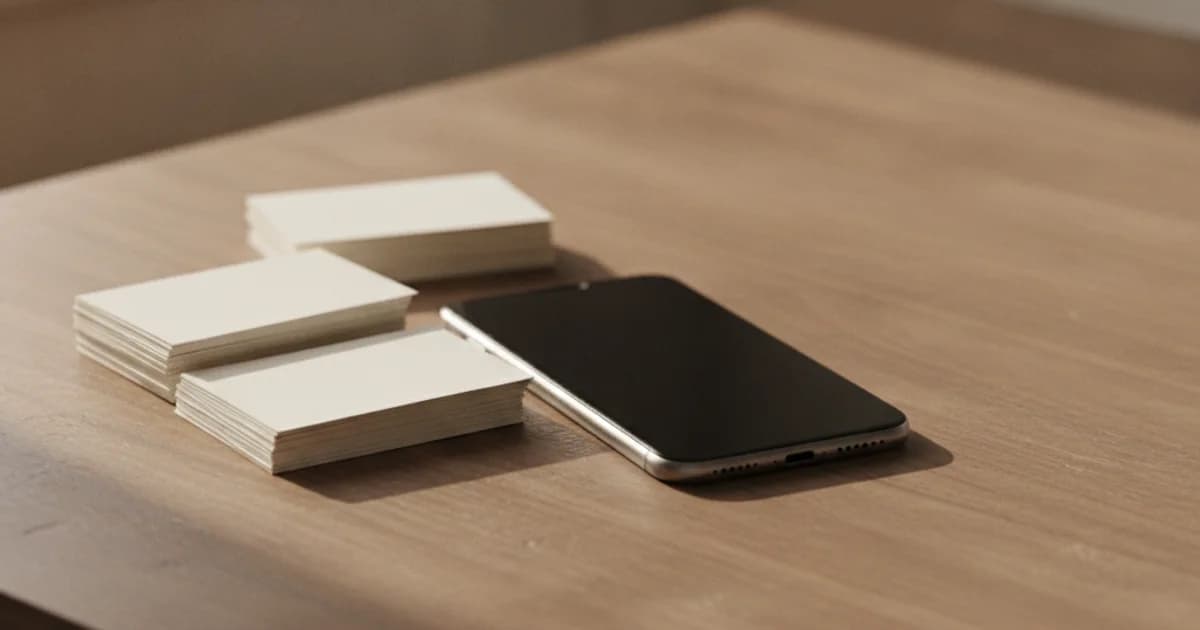
A business card scanner is a tool that photographs a printed card, reads the text on it, and files the result as a contact you can call, message, and follow up. Scaanme's version is called AI Contact Capture, and it does three specific things: it reads Arabic and English cards, it hands you the extracted fields to correct before anything is saved, and it writes the finished contact to two places at once, your phone's own contacts app and your Scaanme CRM.
The problem it solves is not glamorous. Cards accumulate. A rep works a stand at an exhibition and comes home with forty. A procurement manager finishes a week of site visits with a jacket pocket full. The cards do not get typed in, because typing in a card takes about half a minute and nobody has a spare quarter of an hour. So the contacts sit in a drawer, and the introduction that the card was supposed to start never happens.
What a business card scanner actually has to do
Reading text off a photo is the easy half. The parts that decide whether a scanner is useful are less obvious.
It has to split the person from the company. A card that says "Al-Hadid Supplies" above "Samer Al-Hadid" has two names on it, and filing the business as a human being makes the contact useless. Scaanme's reader looks for organization markers in both languages, English ones like Co, LLC, Group, Bank and Insurance, and Arabic ones like شركة, مؤسسة, مجموعة and مصنع, and moves that value into the Company field. A card with no person on it at all leaves the Name field empty rather than inventing someone.
It has to let you correct it. Print defeats readers in predictable ways: a stylised logotype, a foil-stamped name, a phone number split across a decorative rule. Any scanner that saves without showing you the result is committing a guess to your database permanently. Scaanme shows all eight fields in an editable form and saves nothing until you press a button.
It has to not duplicate people. Scan the same card twice, or scan a card for someone who already filled in your contact form last year, and you should end up with one record. Scaanme resolves identity by email first, with phone as a secondary key, and updates the existing contact in place.
And it has to know what a phone number looks like in this region. A number printed in Arabic-Indic numerals (٠٧٩٠) is a number. A scanner that strips non-ASCII characters before parsing turns it into an empty string and silently drops the only way to reach that person.
How it works, step by step
Open Scan a card in the Scaanme dashboard sidebar. The page is a single card with your AI credit balance in the corner.
1. Photograph the card, or upload an image. "Take a photo" opens the rear camera straight away, which is the fast path when the card is in your hand. "Upload image" opens your file picker for photos already in your camera roll. JPG, PNG and WebP are accepted, one card per image.
2. Wait a few seconds. The uploader is replaced by a reading state. There is no submit button; choosing the image starts the read.
3. Review eight fields. Name, Company, Job title, Phone, Email, Website, Social links and Address come back filled and editable. Phone, email and social links hold multiple values, so a card printed with a mobile and a landline gives you both, and printed handles are expanded into full profile URLs. Arabic values stay in Arabic and the address renders right to left.
4. Choose where it goes. Save to phone, add to CRM, or both, then scan the next card.
The full click-by-click version, with screenshots of each screen, is in the Academy guide: Scan a Paper Card into Your Phone and CRM.
The Arabic part that most scanners get wrong
Saving an Arabic contact to a phone is harder than saving an English one, and the failure is usually invisible until the contact arrives broken.
The contact file format, vCard, folds long lines at 75 octets. Octets, not characters. An Arabic name is two bytes per letter, so a name that looks short crosses the limit fast, and a naive folder splits a letter in half and produces a corrupted contact that strict Android importers reject or truncate. Scaanme folds at the byte boundary without ever cutting a character.
There is a version trap too. iOS and iCloud reject vCard 4.0 on import, so the file is written as vCard 3.0 deliberately.
Phone numbers printed in Arabic-Indic digits are converted to Western digits before anything else happens, so a Gulf number typed in ٠١٢٣ survives. Invisible direction-control characters, the ones that can reverse how a name displays and are the basis of the Trojan Source class of tricks, are stripped from every field.
Finally, the downloaded file is named after the person. An Arabic name downloads with an Arabic filename rather than a row of dashes, because the response carries both an ASCII fallback name and a UTF-8 encoded one.
None of this is visible when it works. All of it is visible when it does not.
Where the contact goes
To your phone, on every plan. Save to phone builds a standard .vcf file and your phone opens it with its own Add Contact sheet. Any social links read off the card travel into the file too, so the Instagram or LinkedIn profile ends up on the phone contact next to the website. This works on the free plan as long as you have AI credits. One note for iPhone users: Safari shows the vCard in a preview sheet, and the Done button at the top does not save it. You have to scroll down and tap Create New Contact. Scaanme shows that warning on screen automatically when it detects an iPhone, because it is the step people miss.
To your CRM, on plans that include it. The contact needs at least a phone or an email, and it lands with First touch recorded as Scan, so scanned cards never masquerade as web traffic in your source reports. A "Scanned card" entry is written to the activity timeline carrying the company and job title, with the full field set preserved on that entry. From there the contact behaves like any other lead in the Scaanme CRM: WhatsApp, email and call buttons, a lead score that builds as the person engages, deals, tasks, and the AI insight panel that drafts a first message.
On plans without the CRM, the Add to CRM button is visible but locked. The scan and the phone save still work.
What it costs
One AI credit per card, and the credit is charged only when the read returns something usable. If a photo comes back with no name, no phone and no email, you are asked to retake it and your balance is untouched. Credits come from your plan or from a booster pack; accounts on an unlimited allowance are not metered. The AI Credits guide covers the balance in detail.
What happens to the photo
The card image is deleted as soon as the text has been extracted, whether the read succeeded or failed. Scaanme keeps no library of the cards you scanned, and no image is attached to the CRM record.
That is the right default for a card someone handed you in confidence. It also has a practical consequence worth knowing: you cannot go back to the original photo later to check a digit. Correct the fields on the review screen while the card is still in your hand.
What it does not do yet
Being specific about the edges is more useful than a feature list.
- No bulk upload. One card per photo, one photo at a time. The Scan another button returns you to the uploader without leaving the page, so a stack is a rhythm rather than a batch job.
- No back-of-card merge. If the Arabic side and the English side are printed on opposite faces, they are two photos and two scans today.
- No automatic outreach. Nothing is sent to the person whose card you scanned. Every follow-up is one you choose to send.
- No stored card image, as above, by design.
At a glance
| Question | Answer |
|---|---|
| What it reads | Arabic, English and bilingual printed cards |
| Fields returned | Name, Company, Job title, Phone, Email, Website, Social links, Address |
| Editable before saving | Yes, all eight |
| Cost | 1 AI credit per card, charged on success only |
| Save to phone | Every plan, standard .vcf (vCard 3.0) |
| Add to CRM | Plans that include the CRM |
| Duplicate handling | Matched by email, then phone; existing contact updated |
| Card image retention | None, deleted after extraction |
| Input | Phone camera or uploaded JPG, PNG or WebP |
Start with the drawer
Pick the pile you have been ignoring and work through it once. Photograph, glance, save, next. Thirty cards is one sitting.
If you do not have a Scaanme account yet, create one free; the scanner needs AI credits, and adding contacts to the CRM needs a plan that carries it, which the pricing page sets out. If you also want the other direction, turning your own paper card into a live digital profile, that is the AI card builder, a different tool for a different job.