ربط تقويم جوجل بنظام الحجز في بطاقتك الرقمية: خطوة بخطوة

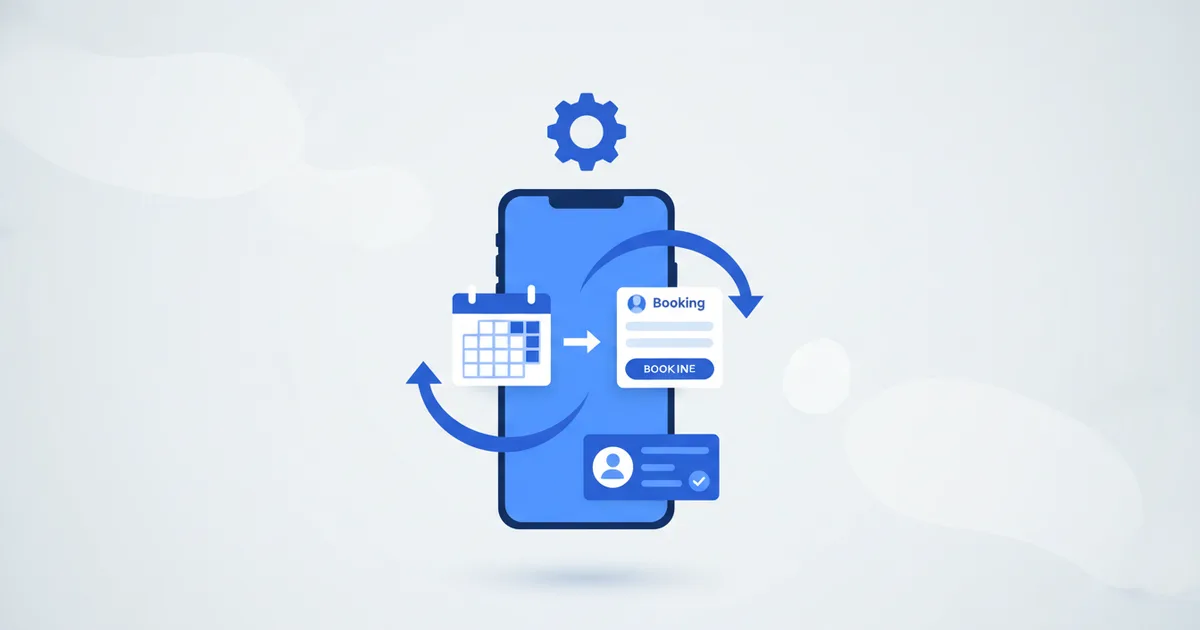
لربط تقويم جوجل بنظام الحجز في بطاقتك الرقمية: افتح الحجوزات ثم التكاملات في لوحة تحكم ScaanMe، صرّح لتقويم جوجل، حدد ساعات عملك، واختبر حجزاً واحداً. من تلك اللحظة يبقى نظام الحجز وتقويمك الشخصي متزامنين باتجاهين: العملاء يرون المواعيد المتاحة فقط عندما تكون متفرغاً فعلاً، وكل حجز يهبط في تقويم جوجل من تلقاء نفسه، وأي حدث شخصي تضيفه في جوجل يحجب الموعد من بطاقتك. لا حجوزات مزدوجة، لا مواعيد فائتة، لا إدخال يدوي.
عملاؤك يديرون حياتهم من هواتفهم أصلاً؛ ومع 5.56 مليار شخص متصل بالإنترنت وفق تقرير DataReportal الرقمي 2025، فإن تمكينهم من الحجز مباشرة من بطاقتك يلغي الرسائل المتبادلة التي تضيع المواعيد.
كيف يعمل من البداية للنهاية
- العميل يفتح بطاقتك الرقمية
- يرى المواعيد المتاحة متزامنة مباشرة من تقويم جوجل
- يختار موعداً ويحجز
- الموعد يظهر في تقويم جوجل تلقائياً
- العميل يستلم تأكيداً بالبريد مع زر إضافة إلى التقويم
- تصلك أنت إشعار واتساب
دليل الإعداد
الخطوة 1: اربط تقويم جوجل
- في لوحة تحكم ScaanMe اذهب إلى الحجوزات ثم التكاملات
- اضغط ربط تقويم جوجل
- صرّح لـ ScaanMe بقراءة تقويمك والكتابة فيه؛ يتم ذلك عبر شاشة موافقة OAuth القياسية من جوجل ويمكنك إلغاء التصريح في أي وقت من حساب جوجل
- اختر أي تقويم تريد مزامنته: العمل أو الشخصي أو كليهما
الخطوة 2: حدد توفرك
- عرّف أيام وساعات العمل لكل يوم من أيام الأسبوع
- اضبط وقت الفاصل بين المواعيد؛ 15 دقيقة إعداد افتراضي جيد
- احجب استراحة الغداء وأوقات الصلاة والوقت الشخصي
- حدد إلى أي مدى مستقبلاً يمكن للعملاء الحجز: أسبوع أو أسبوعان أو شهر
الخطوة 3: اضبط الخدمات
- أضف كل خدمة تقدمها كبند حجز مستقل
- حدد مدة كل خدمة، فالاستشارة الأولى وجلسة المتابعة نادراً ما تحتاجان المدة نفسها
- أضف وصفاً قصيراً لكل خدمة ليختار العميل الصحيحة
الخطوة 4: اختبرها كأنك عميل
- افتح بطاقتك الرقمية في نافذة تصفح خاص
- احجز موعداً حقيقياً من البداية للنهاية
- تحقق من ظهوره في تقويم جوجل خلال دقيقة
- راجع بريد التأكيد ثم ألغِ حجز الاختبار
فوائد المزامنة بالاتجاهين
| الميزة | الفائدة |
|---|---|
| حجب أوقات الانشغال | الأحداث الشخصية تحجب مواعيد الحجز تلقائياً |
| تحديثات لحظية | ألغِ في تقويم جوجل ويعود الموعد متاحاً على بطاقتك |
| تقاويم متعددة | يُفحص التوفر عبر كل تقويم قمت بمزامنته |
| التعامل مع المناطق الزمنية | تلقائي للعملاء الدوليين |
وتوثّق جوجل من جانبها كيف تتزامن الأحداث عبر الأجهزة والتطبيقات المرتبطة، فالتغييرات تنتشر سواء عدّلت من الهاتف أو الحاسوب أو عبر نظام الحجز.
رابط الحجز على بطاقتك يحوّل سؤال "متى تكون فاضي؟" من محادثة بخمس رسائل إلى ضغطة واحدة.
وبعد أن تنطلق الحجوزات، راقب أي الروابط يستخدمها عملاؤك فعلاً عبر دليل تحليلات البطاقة. ميزات الحجز جزء من خطط ScaanMe: تتوفر خطة مجانية والخطط المدفوعة تبدأ من 7.99 دولار شهرياً؛ راجع صفحة الأسعار.
أخطاء إعداد شائعة
- مزامنة تقويم العمل فقط بينما الأحداث الشخصية تعيش في تقويم آخر، وهذه بالضبط الطريقة التي تتسلل بها الحجوزات المزدوجة من جديد.
- ضبط الفاصل بين المواعيد على صفر، فلا مجال لاجتماع يطول أو زحمة طريق بين موقعين.
- تقديم خدمة عامة واحدة بدل مدد منفصلة للاستشارة الأولى وجلسة المتابعة السريعة.
- عدم اختبار مسار الحجز على الهاتف مع أن كل عميل تقريباً سيستخدمه من هناك.
- ترك نافذة الحجز مفتوحة بلا حد، فيحجز العملاء قبل ثلاثة أشهر وينسون؛ أسبوعان إلى أربعة تحافظ على نسبة حضور صحية.
الأسئلة الشائعة
هل الحجز يظهر في تقويم جوجل تلقائياً؟
نعم، وبالاتجاهين: الحجوزات من بطاقتك تظهر في تقويم جوجل، والأحداث التي تنشئها في جوجل تحجب المواعيد المطابقة على بطاقتك. الاتجاهان يتحدثان خلال نحو دقيقة.
ماذا يحدث إذا كنت مشغولاً في تقويمي الشخصي؟
إذا كنت زامنت ذلك التقويم فوقت الانشغال يُعامل كغير متاح والعملاء ببساطة لا يرون الموعد. علّم الأحداث الشخصية كمتاح في تقويم جوجل إذا أردت السماح بالحجز فوقها.
هل يستطيع العميل إلغاء حجزه أو تعديله؟
نعم، من الرابط في بريد التأكيد. الموعد يعود متاحاً على بطاقتك تلقائياً وتقويمك يتحدث، وتصلك أنت الإشعارات في الحالتين.
هل يحتاج عملائي حساب جوجل للحجز؟
لا. هم يحجزون مباشرة على بطاقتك بالاسم وبيانات التواصل. أنت وحدك تحتاج حساب جوجل، وفقط إذا أردت مزامنة التقويم أصلاً؛ نظام الحجز يعمل مستقلاً أيضاً.